DRAG DROP
-
Your company uses Teams and deploys the Yammer Communities app to all users.
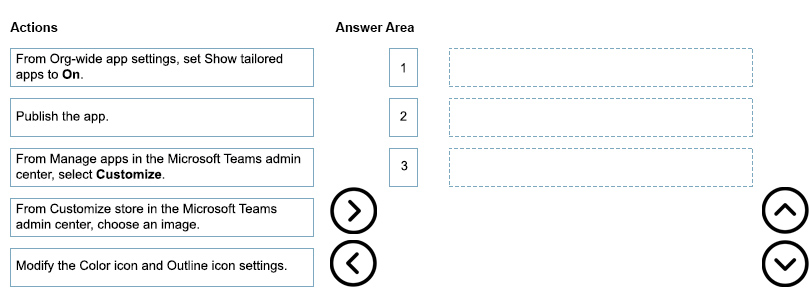
The communications department at the company needs you to replace the image on the Teams app bar for the Communities app.
Which three actions should you perform in sequence? To answer, move the appropriate actions from the list of actions to the answer area and arrange them in the correct order.
Show Answer
Correct Answer: 1. From Manage apps in the Microsoft Teams admin center, select Customize.
2. From Customize store in the Microsoft Teams admin center, choose an image.
3. Publish the app.
Explanation: To replace the Teams app bar image for a built-in app customization, open the app customization, select a new image in the Customize store, and then publish the updated customization. The other options are unrelated to changing the app icon.
Question 107
HOTSPOT
-
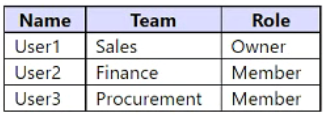
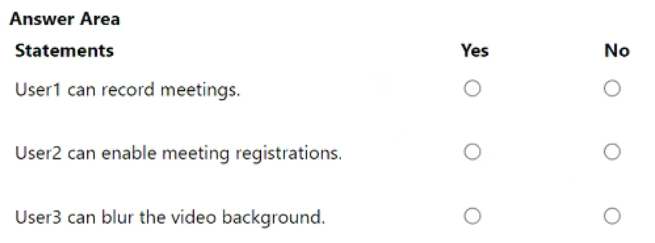
You have a Microsoft 365 subscription that uses Teams. The subscription contains the users shown in the following table.
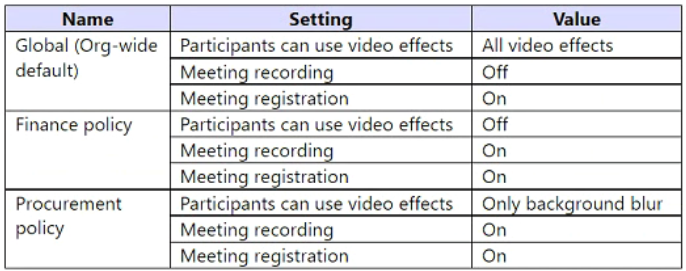
You have the meeting policies shown in the following table.
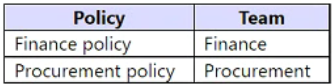
The meeting polices are assigned to teams as shown in the following table.
For each of the following statements, select Yes if True. Otherwise select No.
NOTE: Each correct selection is worth one point.
Show Answer
Correct Answer: Yes
No
Yes
Explanation: Meeting policies apply to users. User1 uses the global policy, where meeting recording is Off, so cannot record? Wait: statement says can record meetings. Recording Off means cannot. Meeting registration requires organizer support and policy; members cannot necessarily enable? Procurement policy allows only background blur, so User3 can blur background.
Question 108
DRAG DROP
-
Case study
-
Overview
-
Company Information
-
ADatum Corporation is an energy company that has offices across North America and 3,000 employees.
Physical Locations
-
ADatum has the offices shown in the following table.
Existing Environment
-
Network Infrastructure
-
The office in Calgary has a 1-Gbps internet circuit. The offices in San Diego and New York have 100-Mbps internet circuits. The field site in Edmonton has a 3-Mbps internet circuit.
Departments
-
ADatum has the following departments:
• Information technology (IT)
• Project management
• Marketing
Microsoft 365 and Tenants Environment
ADatum recently purchased a Microsoft 365 E5 subscription that has the Microsoft Teams Domestic Calling Plan add-on. All users are assigned Microsoft 365 E5 and Microsoft Teams Domestic Calling Plan licenses and Calling Plans is deployed.
Azure AD has the default Cross-tenant access settings configured.
The Teams policies settings are configured as shown in the following exhibit.
The Teams client is deployed to a non-persistent Virtual Desktop Infrastructure (VDI) used by the project management department.
Allow guest access in Teams is set to Off.
The Microsoft Viva Connections app is deployed to all users.
Problem Statements
-
ADatum identifies the following issues:
• An executive at the San Diego office reports that video drops during Teams meetings.
• The Edmonton field site has limited bandwidth, and users report poor audio during Teams calls and meetings.
• Users in the project management department report that they cannot give or take control during Teams calls and meetings while sharing their VDI desktop.
Planned Changes
-
ADatum plans to implement the following changes:
• Configure the media bit rate settings for the users at the Edmonton field site. The settings must apply only to the user while they are at the site, but NOT when they are at a different office.
• Create a Teams channel to enable the project management department to collaborate with the IT department on a device upgrade project.
• Implement a pilot rollout of Operator Connect for the users in the New York office. A port re-quest was accepted already.
• Create a Teams channel for the marketing department for external collaboration.
• Rename the Viva Connections icon as Start portal.
Technical Requirements
-
ADatum identifies the following technical requirements:
• The marketing department requires that all the files shared by using Teams remain available for at least three years after deletion.
• The marketing department must be able to apply a watermark to content and video shared dur-ing Teams meetings.
• All users require indefinite access to training videos recorded in Teams by the IT department.
• All access to Teams and shared resources must use the principle of least privilege.
• Guest access must remain disabled.
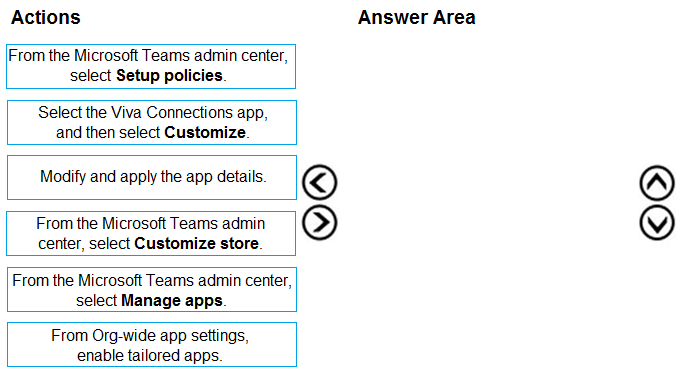
You need to implement the planned changes for Viva Connections.
Which three actions should you perform in sequence? To answer, move the appropriate actions from the list of actions to the answer area and arrange them in the correct order.
Show Answer
Correct Answer: From the Microsoft Teams admin center, select Manage apps.
Select the Viva Connections app, and then select Customize.
Modify and apply the app details.
Explanation: Renaming the Viva Connections app (for example, to 'Start portal') is done by customizing the Viva Connections app entry in Teams Admin Center, then saving the updated app details.
Question 109
You have a Microsoft Office 365 subscription.
You need to prevent guest users from deleting channels from a Microsoft Teams team.
What should you use?
A. the Azure portal
B. the Microsoft Purview compliance portal
C. the Microsoft Teams PowerShell module
D. the Azure Active Directory Module for Windows PowerShell
Show Answer
Correct Answer: C
Explanation: Use the Microsoft Teams PowerShell module to configure guest permissions at the team level. The Set-TeamGuestSettings/Set-TeamGuestSetting cmdlet allows administrators to control whether guest users can delete channels by setting the appropriate parameter (for example, disabling DeleteChannelsAllowed) for the target team.
Question 110
HOTSPOT
-
You have a Microsoft 365 subscription that uses Teams.
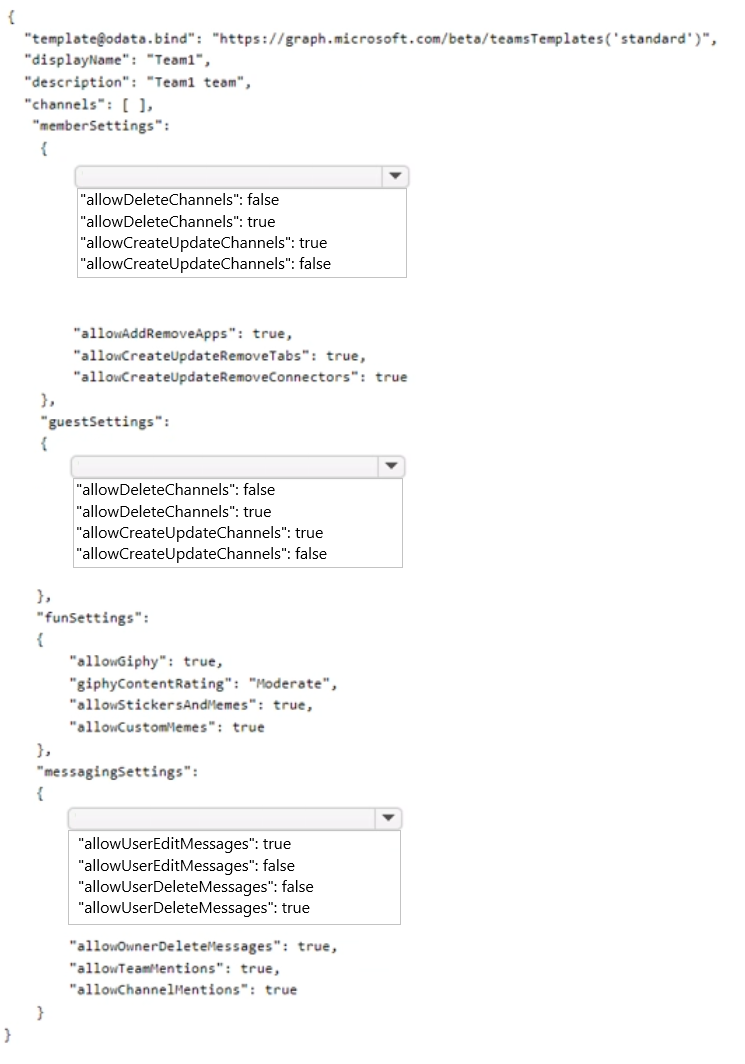
You have a template to create a team named Team1.
You need to modify the template so that only Team1 owners can delete channels and messages.
How should you complete the template? To answer, select the appropriate options in the answer area.
NOTE: Each correct selection is worth one point.
Explanation: Disable channel deletion for members and guests, while owner message deletion remains enabled via allowOwnerDeleteMessages: true. Disabling user message deletion ensures only owners can delete messages.
Question 111
HOTSPOT
-
You have a Microsoft 365 E5 subscription that uses Teams.
You need to recommend a security solution for Teams users. The solution must meet the following requirements:
• Detect risks, such as unfamiliar sign-ins and atypical travel.
• Enforce multi-factor authentication (MFA) when risky sign-ins are detected.
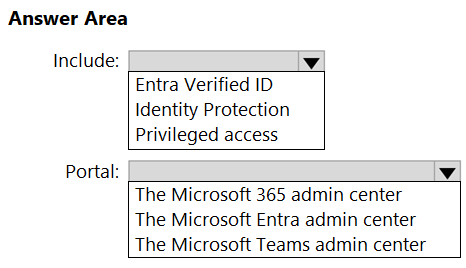
What should you include in the recommendation, and which portal should you use? To answer, select the appropriate options in the answer area.
NOTE: Each correct selection is worth one point.
Show Answer
Correct Answer: Include: Identity Protection
Portal: The Microsoft Entra admin center
Explanation: Microsoft Entra ID Protection detects identity risks such as unfamiliar sign-ins and atypical travel. Risk-based policies, including requiring MFA for risky sign-ins, are configured in the Microsoft Entra admin center.
Question 112
Your company has a Microsoft Office 365 subscription.
Users in the company’s sales department frequently invite guest users to meetings.
You need to ensure that when the sales department users invite guest users to meetings, the guest users are admitted by default. The solution must only apply to the sales department users.
Which two actions should you perform? Each correct answer presents part of the solution.
NOTE: Each correct selection is worth one point.
A. In the global meeting policy, set Automatically admit users to Everyone.
B. Create a new meeting policy and set Automatically admit users to Everyone.
C. Apply the policy to the sales department users.
D. In the global meeting policy, set Automatically admit users to People in your organization.
Show Answer
Correct Answer: B, C
Explanation: To affect only the sales department, create a separate Teams meeting policy with the 'Automatically admit users' setting configured to 'Everyone', which admits guest users by default. Then assign that custom meeting policy only to the sales department users. Modifying the global meeting policy would affect all users in the organization, which does not meet the requirement.
Question 113
Your company uses Teams.
All users are assigned a Microsoft 365 E3 license.
You need to recommend a license that will enable the use of information barriers (IBs) in Teams.
What are two licenses that you can recommend? Each correct answer presents a complete solution.
NOTE: Each correct selection is worth one point.
A. the Microsoft Teams Premium add-on
B. the Priva Privacy Risk Management add-on
C. Microsoft 365 Business Standard
D. Microsoft 365 E5
E. the Microsoft 365 E5 Compliance add-on
Show Answer
Correct Answer: D, E
Explanation: Information Barriers in Microsoft Teams require Microsoft 365 E5 capabilities. They are included with Microsoft 365 E5 or can be added to Microsoft 365 E3 through the Microsoft 365 E5 Compliance add-on. Teams Premium, Priva Privacy Risk Management, and Microsoft 365 Business Standard do not provide Information Barriers.
Question 114
You have a Microsoft Office 365 subscription that contains a user named User1.
You need to ensure that User1 can view Usage reports in the Microsoft Teams admin center. The solution must use the principle of least privilege.
Which role should you assign to User1?
A. Teams Administrator
B. Teams Communication Support Specialist
C. Teams Device Administrator
D. Global Reader
Show Answer
Correct Answer: D
Explanation: Viewing Microsoft Teams usage reports requires read access to admin reporting. The Global Reader role provides read-only access across Microsoft 365 admin centers, including usage reports, without granting administrative change permissions. The other Teams-specific roles focus on administration, support, or devices and do not provide the required Usage reports access with least privilege.
Question 115
You have a Microsoft 365 E5 subscription that uses Teams.
Your company requires that all inactive teams be deleted.
You need to identify teams that were inactive during the last 90 days.
What should you use?
A. Microsoft Adoption Score
B. Teams advisor
C. access reviews
D. the Teams usage report
Show Answer
Correct Answer: D
Explanation: The Teams usage report in the Microsoft 365 admin center provides activity metrics for teams and can be used to identify teams with no activity over a specified period, such as the last 90 days. Microsoft Adoption Score measures overall adoption, Teams advisor provides deployment guidance, and access reviews are for reviewing user or group access rather than identifying inactive teams.
$19
Get all 448 questions with detailed answers and explanations
Instant download HTML + PDF delivered the moment payment clears.
Secure Stripe checkout we never see or store your card details.
7-day refund if files are defective see our refund policy.