You have a Microsoft 365 subscription that uses Microsoft Intune Suite.
You use Microsoft Intune to manage devices.
You have the devices shown in the following table.
Which devices can be changed to Windows 11 Enterprise by using subscription activation?
A. Device3 only
B. Device2 and Device3 only
C. Device1 and Device2 only
D. Device1, Device2, and Device3
Show Answer
Correct Answer: B
Explanation: Device2 and Device3 are already running Windows 11 Pro, so subscription activation can change them to Windows 11 Enterprise. Device1 is running Windows 10; subscription activation does not upgrade a device from Windows 10 to Windows 11.
Question 31
Note: This section contains one or more sets of questions with the same scenario and problem. Each question presents a unique solution to the problem. You must determine whether the solution meets the stated goals. More than one solution in the set might solve the problem. It is also possible that none of the solutions in the set solve the problem.
After you answer a question in this section, you will NOT be able to return. As a result, these questions do not appear on the Review Screen.
You have a Microsoft 365 E5 subscription. The subscription contains devices that are Microsoft Entra joined and enrolled in Microsoft Intune.
You create a user named User1.
You need to ensure that User1 can rotate BitLocker recovery keys by using Intune.
Solution: From the Microsoft Entra admin center, you assign the Cloud Device Administrator role to User1.
Does this meet the goal?
A. Yes
B. No
Show Answer
Correct Answer: B
Explanation: Assigning the Microsoft Entra Cloud Device Administrator role does not grant the Intune permissions required to rotate BitLocker recovery keys. Rotating BitLocker recovery keys through Intune requires appropriate Intune administrative permissions (or an Entra role that includes the necessary Intune capabilities), not the Cloud Device Administrator role.
Question 31
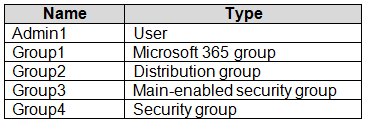
You have a Microsoft 365 tenant that contains the objects shown in the following table.
You are creating a compliance policy named Compliance1.
Which objects can you specify in Compliance1 as additional recipients of noncompliance notifications?
A. Group3 and Group4 only
B. Group3, Group4, and Admin1 only
C. Group1, Group2, and Group3 only
D. Group1, Group2, Group3, and Group4 only
E. Group1, Group2, Group3, Group4, and Admin1
Show Answer
Correct Answer: C
Explanation: Additional recipients must be groups with email addresses. Group1 (Microsoft 365 group), Group2 (distribution group), and Group3 (mail-enabled security group) qualify. Group4 is not mail-enabled, and Admin1 is an individual user.
Question 32
SIMULATION
-
Username and password
-
Use the following login credentials as needed:
To enter your username, place your cursor in the Sign in box and select the username below.
To enter your password, place your cursor in the Enter password box and select the password below.
Microsoft 365 Username:
Microsoft 365 Password: i7A4$3o^HGD3L~=c[9xuOhM%^4:s11Ai
If the Microsoft Edge browser or Microsoft 365 portal does not load successfully, select the Microsoft Edge browser icon from the task bar, type the URL “https://portal.office.com”, and press Enter.
The following information is for technical support purposes only:
Lab Instance: 48262079
-
You need to create a compliance policy to validate whether all the Windows 10 or later devices enrolled in Microsoft Intune have BitLocker Drive Encryption (BitLocker) enabled.
Show Answer
Correct Answer: Devices → Compliance policies → Create policy
Platform: Windows 10 and later
Device health → Require BitLocker = Require
Assign the policy
Create
Explanation: A Windows compliance policy validates device state. Setting 'Require BitLocker' to 'Require' under Device health checks that BitLocker is enabled and marks devices compliant or noncompliant accordingly.
Question 32
You have a Hyper-V host that contains the virtual machines shown in the following table.
On which virtual machines can you install Windows 11?
A. VM1 only
B. VM3 only
C. VM1 and VM2 only
D. VM2 and VM3 only
E. VM1, VM2, and VM3
Show Answer
Correct Answer: B
Explanation: VM3 is the only listed VM that meets the basic Hyper-V requirements: it is Generation 2, has at least 2 virtual processors, and has 4 GB of memory. VM1 is Generation 1, and VM2 has only 1 virtual processor. VM3 must also have the required virtual TPM and Secure Boot enabled.
Question 33
HOTSPOT
-
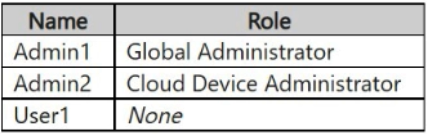
You have a Microsoft Entra tenant named contoso.com that contains the users shown in the following table.
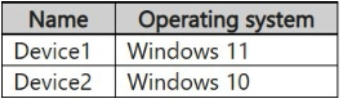
You purchase the devices shown in the following table.
Administrators perform the following actions:
• Join Device1 to contoso.com by using the credentials of Admin1.
• Register Device2 in contoso.com by using the credentials of Admin2.
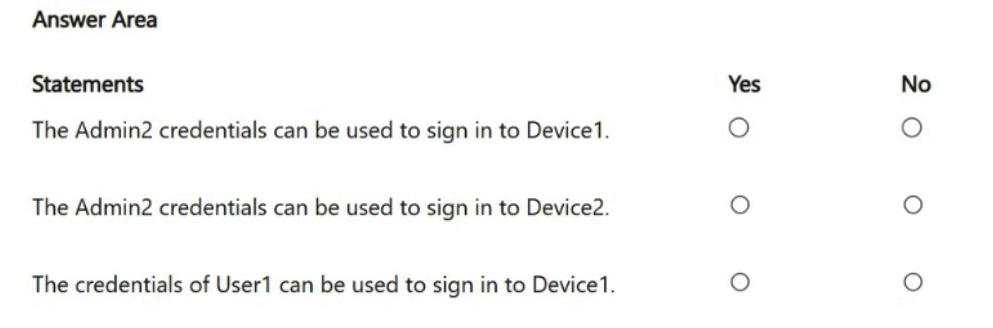
For each of the following statements, select Yes if the statement is true. Otherwise, select No.
NOTE: Each correct selection is worth one point.
Show Answer
Correct Answer: Yes
No
Yes
Explanation: Microsoft Entra joined Windows devices allow any tenant user to sign in by default (unless restricted). Microsoft Entra registered devices are signed in with the existing local/Microsoft account, not with Microsoft Entra credentials.
Question 33
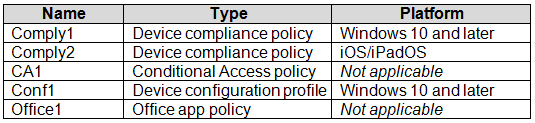
You have a Microsoft Intune deployment that contains the resources shown in the following table.
You create a policy set named Set1 and add Comply1 to Set1.
Which additional resources can you add to Set1?
A. Conf1 only
B. Comply2 only
C. Comply2 and Conf1 only
D. CA1, Conf1, and Office1 only
E. Comply2, CA1, Conf1, and Office1
Show Answer
Correct Answer: C
Explanation: Policy sets can include device compliance policies and device configuration profiles, so Comply2 and Conf1 can be added. They support cross-platform assignments, so Comply2’s iOS/iPadOS platform does not prevent it from being included. Conditional Access policies and Office app policies aren’t supported policy-set resources.
Question 34
HOTSPOT
-
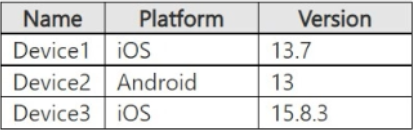
You have a Microsoft 365 subscription and use the Microsoft Intune Suite.
You have the devices shown in the following table.
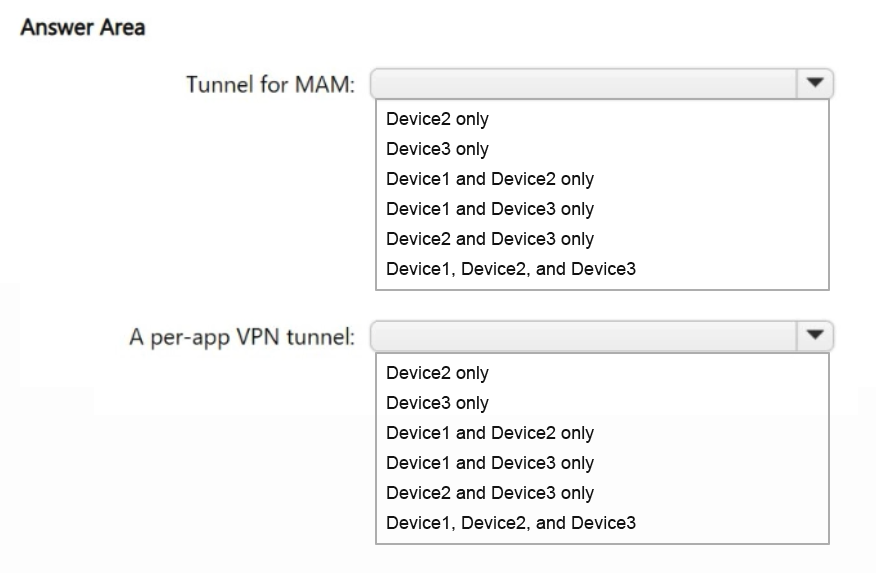
You plan to implement Microsoft Tunnel for Mobile Application Management (MAM).
Which types of tunnels are supported by the devices? To answer, select the appropriate options in the answer area.
NOTE: Each correct selection is worth one point.
Show Answer
Correct Answer: Tunnel for MAM: Device2 and Device3 only
A per-app VPN tunnel: Device1, Device2, and Device3
Explanation: Tunnel for MAM requires Android 10+ and iOS 14+, so iOS 13.7 is excluded. Per-app VPN profiles are supported on iOS 9+ and Android versions supported by Intune Tunnel, so all listed devices support per-app VPN.
Question 34
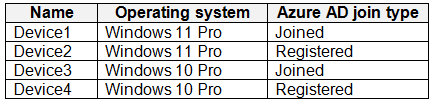
You have an Azure AD tenant that contains the devices shown in the following table.
Which devices can be activated by using subscription activation?
A. Device1 only
B. Device1 and Device2 only
C. Device1 and Device3 only
D. Device1, Device2, Device3, and Device4
Show Answer
Correct Answer: C
Explanation: Subscription activation requires a qualifying Windows Pro device to be Microsoft Entra joined or hybrid joined. Device1 (Windows 11 Pro) and Device3 (Windows 10 Pro) are joined; Device2 and Device4 are only registered and aren't eligible.
Question 35
HOTSPOT
-
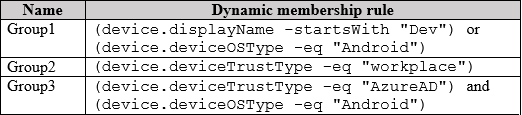
You have a Microsoft Entra tenant named contoso.com that contains the dynamic membership groups shown in the following table.
You add devices to contoso.com as shown in the following table.
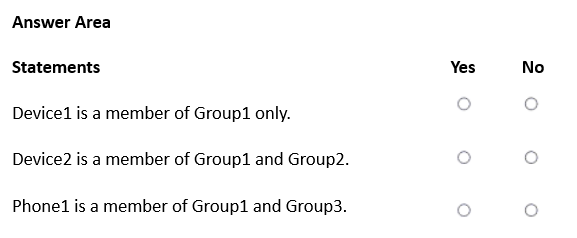
For each of the following statements, select Yes if the statement is true. Otherwise, select No.
NOTE: Each correct selection is worth one point.
Show Answer
Correct Answer: Yes
Yes
No
Explanation: Group1 matches devices whose display name starts with "Dev" or Android devices. Group2 matches Microsoft Entra registered (Workplace) devices. Group3 requires Microsoft Entra joined (AzureAD) and Android.
$19
Get all 371 questions with detailed answers and explanations
Instant download HTML + PDF delivered the moment payment clears.
Secure Stripe checkout we never see or store your card details.
7-day refund if files are defective see our refund policy.