HOTSPOT
-
You manage devices by using Microsoft Intune. Automatic Intune enrollment is disabled.
Users report that they must enter the mobile device management (MDM) server address during device enrollment.
To reduce user interaction during device enrollment, you plan to create the following CNAME DNS hostname records:
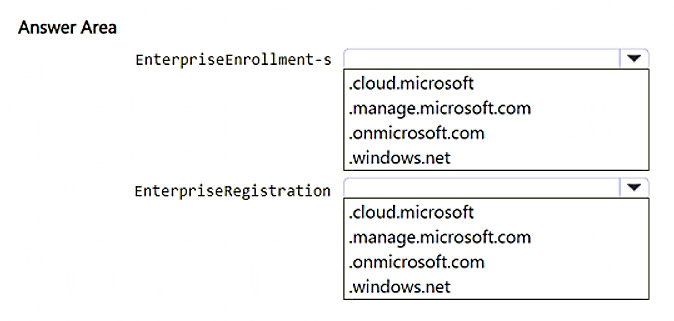
• EnterpriseEnrollment.contoso.com
• EnterpriseRegistration.contoso.com
You need to configure a fully qualified domain name (FQDN) for each CNAME record to redirect enrollment requests to the Intune servers.
How should you configure each FQDN? To answer, select the appropriate options in the answer area.
NOTE: Each correct selection is worth one point.
Explanation: For Microsoft Intune MDM autodiscovery, the EnterpriseEnrollment CNAME should point to EnterpriseEnrollment-s.manage.microsoft.com, and the EnterpriseRegistration CNAME should point to EnterpriseRegistration.windows.net.
Question 48
HOTSPOT
-
You have a Microsoft 365 subscription that contains 5,000 Windows devices enrolled in Microsoft Intune.
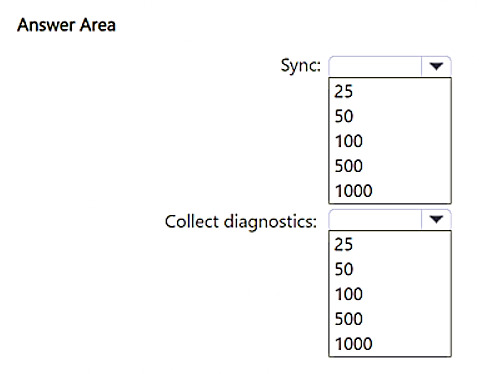
You plan to use the Sync and Collect diagnostics bulk device actions.
What is the maximum number of devices you can include in each action? To answer, select the appropriate options in the answer area.
NOTE: Each correct selection is worth one point.
Show Answer
Correct Answer: Sync: 100
Collect diagnostics: 25
Explanation: In Intune bulk device actions, Sync supports up to 100 devices per action, while Collect diagnostics is limited to 25 Windows devices per action.
Question 49
You have a Microsoft 365 E5 subscription that contains the following types of devices:
• Windows 11
• Android
• iOS
All the devices are enrolled in Microsoft Intune.
You need to use Intune to deploy apps from the Enterprise App Catalog.
To which device types can you deploy the apps?
A. Windows 11 only
B. Windows 11 and Android only
C. Windows 11 and is only
D. Android and iOS only
E. Windows 11, Android, and iOS
Show Answer
Correct Answer: A
Explanation: The Intune Enterprise App Catalog contains prepackaged Win32 applications for Windows. Enterprise App Management currently supports managed Windows devices and does not deploy Enterprise App Catalog apps to Android or iOS. Therefore, these apps can be deployed only to Windows 11 devices.
Question 50
HOTSPOT
-
You have a Microsoft 365 subscription and use Microsoft Intune.
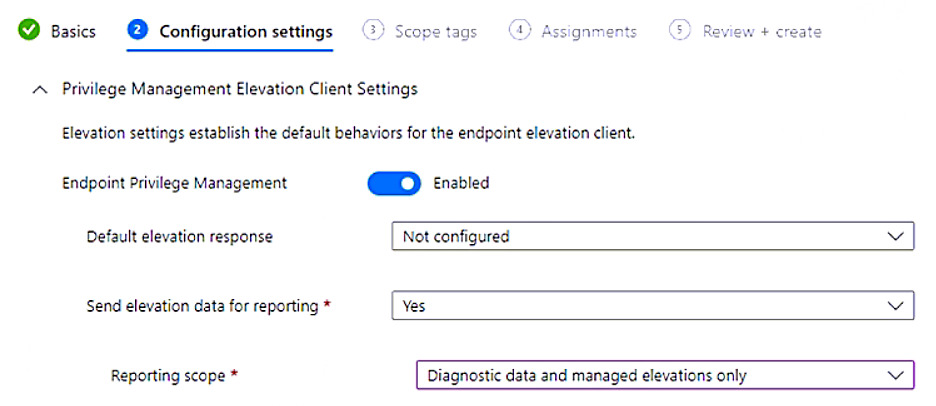
You have the Endpoint Privilege Management (EPM) elevation settings policy shown in the following exhibit.
No EPM elevation rules policies are configured.
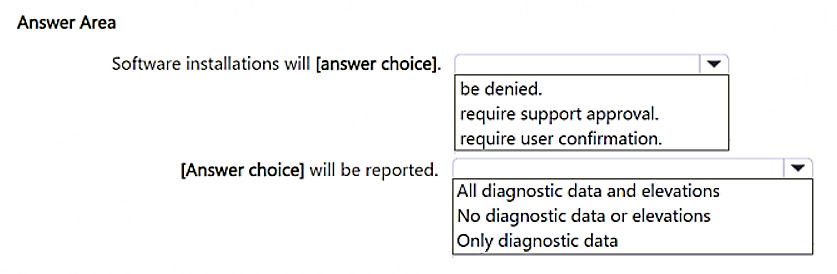
Use the drop-down menus to select the answer choice that completes each statement based on the information presented in the graphic.
NOTE: Each correct selection is worth one point.
Show Answer
Correct Answer: be denied.
Only diagnostic data
Explanation: With Endpoint Privilege Management enabled but Default elevation response set to Not configured, the client falls back to its built-in default of denying elevation requests. Reporting is enabled with the scope set to 'Diagnostic data and managed elevations only'; because no elevation rule policies exist, there are no managed elevations to report, so only diagnostic data is reported.
Question 51
You have a Microsoft 365 subscription and use Microsoft Intune Suite.
You plan to use Microsoft Cloud PKI to support the signing and encryption of email messages.
What should you do first?
A. Create a root certification authority (CA).
B. Create a device compliance policy.
C. Create device configuration SCEP certificate profiles.
D. Create device configuration trusted certificate profiles.
E. Create an issuing certification authority (CA).
Show Answer
Correct Answer: A
Explanation: To use Microsoft Cloud PKI, the first step is to create the root certification authority (CA). After the root CA is established, you create an issuing CA, then deploy trusted certificate profiles and SCEP certificate profiles as needed for certificate issuance and email signing/encryption. Device compliance policies are not the initial prerequisite.
Question 52
HOTSPOT
-
You have a Microsoft 365 E5 subscription that contains a Windows device named Device1.
Device1 was onboarded to Microsoft Defender for Endpoint by using a local script.
You use Microsoft Intune to manage Device1.
You plan to use the machine risk score in a compliance policy.
You need to ensure that the machine risk score is evaluated based on data from Defender for Endpoint.
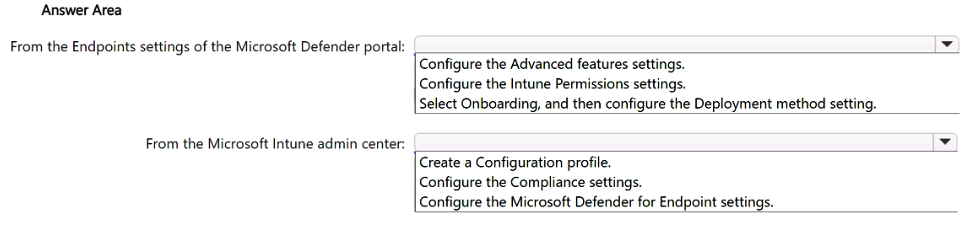
What should you do? To answer, select the appropriate options in the answer area.
NOTE: Each correct selection is worth one point.
Show Answer
Correct Answer: From the Microsoft Defender portal: Configure the Advanced features settings.
From the Microsoft Intune admin center: Configure the Microsoft Defender for Endpoint settings.
Explanation: To use Microsoft Defender for Endpoint device risk in Intune compliance policies, enable the Microsoft Intune connection in Defender for Endpoint Advanced features, then configure the Microsoft Defender for Endpoint connector/settings in Intune so compliance policies can consume the machine risk score.
Question 53
You have a Microsoft 365 E5 subscription that contains devices enrolled in Microsoft intune.
You need to review security tasks in the Microsoft Intune admin center.
What should you do first?
A. Integrate Intune with Microsoft Defender for Endpoint.
B. Implement the ServiceNow connector.
C. Implement the Mobile Threat Defense connector.
D. Deploy an attack surface reduction (ASR) policy.
E. Deploy an Intune security baseline for Microsoft Defender for Endpoint.
Show Answer
Correct Answer: A
Explanation: Security tasks shown in the Microsoft Intune admin center come from Microsoft Defender for Endpoint. Before you can review those security tasks in Intune, you must integrate Intune with Microsoft Defender for Endpoint. Deploying security baselines or ASR policies can be done afterward, but they are not the prerequisite for viewing Defender security tasks.
Question 54
Note: This section contains one or more sets of questions with the same scenario and problem. Each question presents a unique solution to the problem. You must determine whether the solution meets the stated goals. More than one solution in the set might solve the problem. It is also possible that none of the solutions in the set solve the problem.
After you answer a question in this section, you will NOT be able to return. As a result, these questions do not appear on the Review Screen.
You have a Microsoft Entra tenant named contoso.com.
You purchase an Android device named Device1.
You need to register Device1 in contoso.com.
Solution: You use the Google Chrome app.
Does this meet the goal?
A. Yes
B. No
Show Answer
Correct Answer: B
Explanation: No. Registering an Android device with Microsoft Entra ID requires using the Microsoft Authenticator app (or Company Portal for enrollment scenarios). Google Chrome by itself is not used to register the device with the tenant.
Question 56
HOTSPOT
-
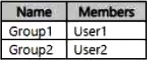
You have a Microsoft Entra tenant that contains the groups shown in the following table.
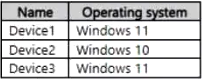
The tenant contains the devices shown in the following table.
The devices have the enrollment restrictions shown in the following table.
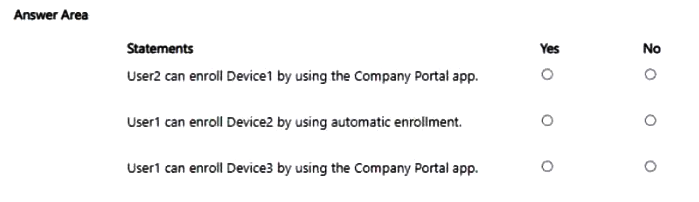
For each of the following statements select yes if the statement is true. Otherwise, select No.
NOTE: Each correct selection is worth one point.
Show Answer
Correct Answer: Yes
Yes
No
Explanation: Restriction1 (priority 1) applies to Group1 and overrides Restriction2 for User1. It allows MDM enrollment but blocks personally owned devices. Company Portal enrollment is treated as personally owned, while automatic enrollment is for corporate/Azure AD joined devices. User2 is only in Group2, where Windows 11 meets the minimum version and personally owned devices are allowed.
Question 57
HOTSPOT
-
You have a Microsoft 365 E5 subscription that contains the devices shown in the following table.
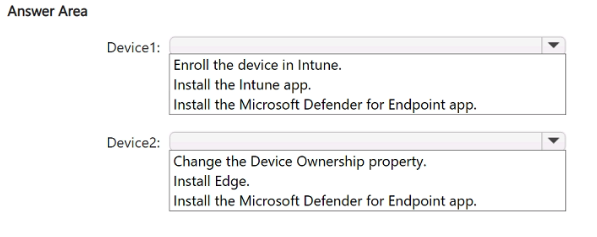
You need to implement Microsoft Tunnel for Mobile Application Management (MAM) to provide the devices with access to an on-premises web app named App1.
What should you do on each device? To answer, select the appropriate options in the answer area.
NOTE: Each correct selection is worth one point.
Show Answer
Correct Answer: Device1: Install the Microsoft Defender for Endpoint app.
Device2: Install Edge.
Explanation: Microsoft Tunnel for MAM supports unenrolled BYOD devices, so Android does not require Intune enrollment. Android requires Company Portal (already present) plus Microsoft Defender for Endpoint. On iOS, access to the on-prem web app via Tunnel for MAM requires a supported MAM-enabled app such as Microsoft Edge; device ownership does not need to be changed.
$19
Get all 371 questions with detailed answers and explanations
Instant download HTML + PDF delivered the moment payment clears.
Secure Stripe checkout we never see or store your card details.
7-day refund if files are defective see our refund policy.