You have a Microsoft 365 subscription and use the Microsoft Intune Suite.
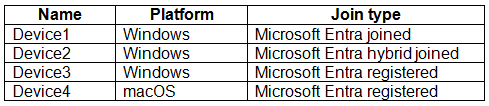
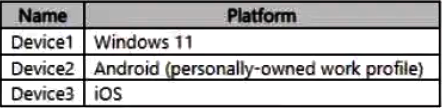
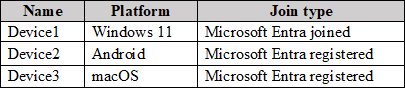
You have the devices shown in the following table.
All the devices are enrolled in Intune.
Which devices can you query by using Device query?
A. Device1 only
B. Device1 and Device2 only
C. Device1, Device2, and Device3 only
D. Device1, Device2, and Device4 only
E. Device1, Device2, Device3, and Device4
Show Answer
Correct Answer: B
Explanation: Device query supports Intune-managed Windows devices that are Microsoft Entra joined or Microsoft Entra hybrid joined. Device1 and Device2 meet those requirements. Device3 is Entra registered, and Device4 runs macOS, so neither is supported.
Question 4
HOTSPOT -
Case study -
Overview -
Contoso, Ltd. is a consulting company that has a main office in Montreal and two branch offices in Seattle and New York.
Contoso has the users and computers shown in the following table.
The company has IT, human resources (HR), legal (LEG), marketing (MKG), and finance (FIN) departments.
Contoso recently purchased a Microsoft 365 subscription.
The company is opening a new branch office in Phoenix. Most of the users in the Phoenix office will work from home.
Existing Environment -
The network contains an Active Directory domain named contoso.com that is synced to Azure AD.
All member servers run Windows Server 2016. All laptops and desktop computers run Windows 10 Enterprise.
The computers are managed by using Microsoft Configuration Manager. The mobile devices are managed by using Microsoft Intune.
The naming convention for the computers is the department acronym, followed by a hyphen, and then four numbers, for example FIN-6785. All the computers are joined to the on-premises Active Directory domain.
Each department has an organizational unit (OU) that contains a child OU named Computers. Each computer account is in the Computers OU of its respective department.
Intune Configuration -
The domain has the users shown in the following table.
User2 is a device enrollment manager (DEM) in Intune.
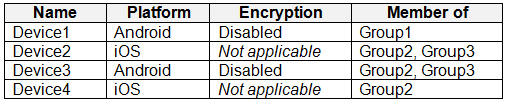
The devices enrolled in Intune are shown in the following table.
The device compliance policies in Intune are configured as shown in the following table.
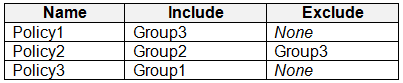
The device compliance policies have the assignments shown in the following table.
The device limit restrictions in Intune are configured as shown in the following table.
Requirements -
Planned changes -
Contoso plans to implement the following changes:
• Provide new computers to the Phoenix office users. The new computers have Windows 10 Pro preinstalled and were purchased already.
• Implement co-management for the computers.
Technical Requirements -
Contoso must meet the following technical requirements:
• Ensure that the users in a group named Group4 can only access Microsoft Exchange Online from devices that are enrolled in Intune.
• Deploy Windows 10 Enterprise to the computers of the Phoenix office users by using Windows Autopilot.
• Create a provisioning package for new computers in the HR department.
• Block iOS devices from sending diagnostic and usage telemetry data.
• Use the principle of least privilege whenever possible.
• Enable the users in the MKG department to use App1.
• Pilot co-management for the IT department.
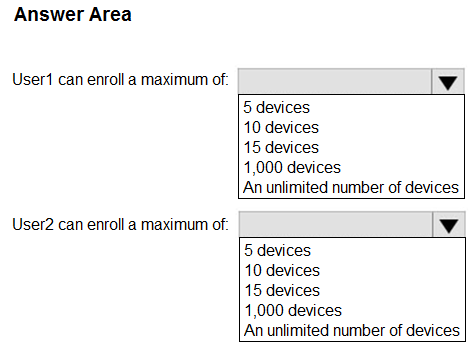
What is the maximum number of devices that User1 and User2 can enroll in Intune? To answer, select the appropriate options in the answer area.
NOTE: Each correct selection is worth one point.
Explanation: User1 is in GroupA, which has a 10-device enrollment limit. User2 is a device enrollment manager; Intune device limit restrictions do not apply to DEM enrollments, which support up to 1,000 devices.
Question 5
Note: This section contains one or more sets of questions with the same scenario and problem. Each question presents a unique solution to the problem. You must determine whether the solution meets the stated goals. More than one solution in the set might solve the problem. It is also possible that none of the solutions in the set solve the problem.
After you answer a question in this section, you will NOT be able to return. As a result, these questions do not appear on the Review Screen.
You have a Microsoft Entra tenant named contoso.com.
You purchase an Android device named Device1.
You need to register Device1 in contoso.com.
Solution: You use Microsoft Entra Connect Sync.
Does this meet the goal?
A. Yes
B. No
Show Answer
Correct Answer: B
Explanation: Microsoft Entra Connect Sync synchronizes identities (users, groups, and supported devices) from on-premises Active Directory to Microsoft Entra ID. It is not used to register an Android device in Microsoft Entra. Android device registration is performed through Microsoft Intune/Company Portal or Microsoft Entra device registration workflows, not Entra Connect Sync.
Question 5
You have a Microsoft 365 subscription that contains devices enrolled in Microsoft intune as shown in the following table.
You need to use a bulk device action to send custom notifications.
To which devices can you send the custom notifications?
A. Device1 only
B. Device2 only
C. Device3 only
D. Device2 and Device3 only
E. Device1, Device2, and Device3
Show Answer
Correct Answer: D
Explanation: Intune custom notifications are supported for managed Android and iOS/iPadOS devices, but not Windows devices. Device2 (Android with a personally owned work profile) and Device3 (iOS) are eligible; Device1 (Windows 11) is not.
Question 5
HOTSPOT -
All users have Microsoft 365 apps deployed.
You need to configure Microsoft 365 apps to meet the following requirements:
Enable the automatic installation of WebView2 Runtime.
Prevent users from submitting feedback.
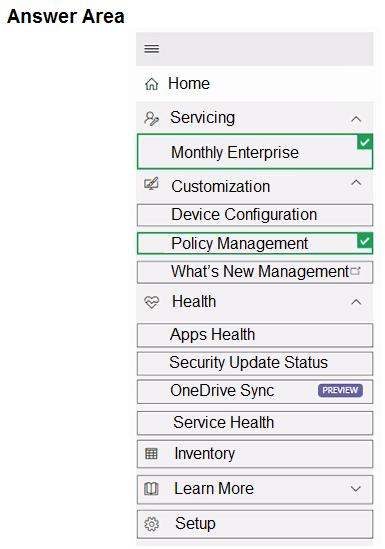
Which two settings should you configure in the Microsoft 365 Apps admin center? To answer, select the appropriate settings in the answer area.
NOTE: Each correct selection is worth one point.
Show Answer
Correct Answer: Enable automatic installation of WebView2 Runtime: Device Configuration
Prevent users from submitting feedback: Policy Management
Explanation: WebView2 automatic installation is controlled under Device Configuration > Modern Apps Settings. Feedback submission can be disabled through Policy Management.
Question 6
HOTSPOT
-
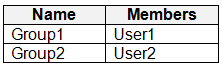
You have a Microsoft Entra tenant that contains the groups shown in the following table.
Microsoft Intune is configured with the enrollment restrictions shown in the following table.
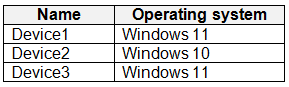
You purchase the devices shown in the following table.
For each of the following statements, select Yes if the statement is true. Otherwise, select No.
NOTE: Each correct selection is worth one point.
Show Answer
Correct Answer: Yes
No
Yes
Explanation: User2 is only affected by the Windows minimum-version restriction and Windows 11 meets it. User1 is subject to the Windows minimum-version restriction, so Windows 10 cannot enroll. Device3 is Windows 11, and since the devices were purchased by the organization, the personally owned device restriction does not block enrollment.
Question 6
You have a Microsoft 365 subscription that contains devices enrolled in Microsoft Intune as shown in the following table.
On which devices can you use Device query?
A. Device1 only
B. Device1 and Device2 only
C. Device1 and Device3 only
D. Device1, Device2, and Device3
Show Answer
Correct Answer: A
Explanation: Device query is supported on Windows 10 and later devices that are Microsoft Entra joined. Device1 runs Windows 11 and is Entra joined; Device2 is Android and Device3 is macOS, so they aren't supported.
Question 6
DRAG DROP -
You have a Microsoft 365 subscription that contains 1,000 Windows 11 devices enrolled in Microsoft Intune.
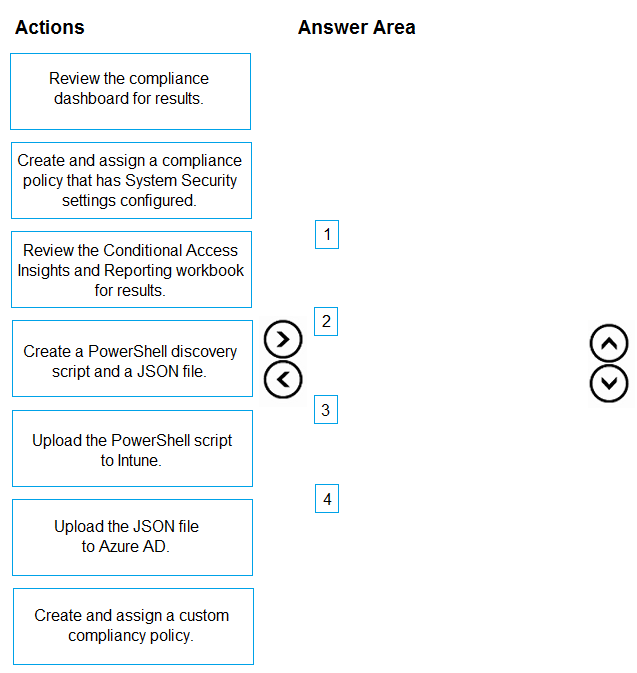
You plan to create and monitor the results of a compliance policy used to validate the BIOS version of the devices.
Which four actions should you perform in sequence? To answer, move the appropriate actions from the list of actions to the answer area and arrange them in the correct order.
Show Answer
Correct Answer: 1. Create a PowerShell discovery script and a JSON file.
2. Upload the PowerShell script to Intune.
3. Create and assign a custom compliance policy.
4. Review the compliance dashboard for results.
Explanation: The script discovers each device’s BIOS version, and the JSON file defines the compliance rule. Upload the script before creating the policy; add the JSON file while configuring it. Then monitor results in the compliance dashboard.
Question 7
You have a Microsoft 365 subscription that uses Microsoft Intune.
You have a Google account.
You plan to enroll Android devices in Intune.
You need to configure Intune to apply a work profile to Android fully managed and corporate-owned devices. The solution must NOT affect personal Android devices enrolled in Intune.
What should you do first?
A. Link your Google account to Intune.
B. Create a device platform restriction for Android device administrator.
C. Configure a device enrollment manager (DEM) account.
D. Configure an enrollment profile in Intune.
Show Answer
Correct Answer: A
Explanation: Android Enterprise enrollment (including fully managed and corporate-owned work profile devices) requires first connecting the Intune tenant to a Managed Google Play account. Linking the Google account establishes this integration. Enrollment profiles are configured afterward, and DEM accounts or Android device administrator restrictions are not the prerequisite for Android Enterprise.
Question 7
You have a Microsoft Entra tenant that contains the devices shown in the following table.
On which devices can you implement Endpoint Privilege Management (EPM)?
A. Device1 only
B. Device1 and Device2 only
C. Device1 and Device3 only
D. Device1, Device3, and Device4 only
E. Device1, Device2, Device3, and Device4
Show Answer
Correct Answer: A
Explanation: EPM requires a supported Windows device that is Microsoft Entra joined or hybrid joined and enrolled in Intune (or co-managed with Configuration Manager). Only Device1 meets these requirements. Device2 is not enrolled, Device3 is only Entra registered, and Device4 runs Android.
$19
Get all 371 questions with detailed answers and explanations
Instant download HTML + PDF delivered the moment payment clears.
Secure Stripe checkout we never see or store your card details.
7-day refund if files are defective see our refund policy.