You have computers that run Windows 10 and connect to an Azure Log Analytics workspace. The workspace is configured to collect all available events from the Windows event logs.
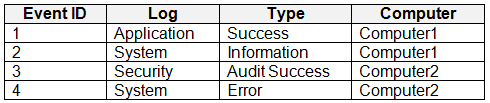
The computers have the logged events shown in the following table.
Which events are collected in the Log Analytics workspace?
A. 1 only
B. 2 and 3 only
C. 1 and 3 only
D. 1, 2, and 4 only
E. 1, 2, 3, and 4
Show Answer
Correct Answer: D
Explanation: The Windows event-log collection setting collects the Application and System events (1, 2, and 4). The Security audit event (3) requires separate security-event collection; selecting all available events in this setting does not include it.
Question 41
HOTSPOT
-
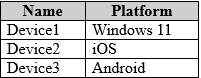
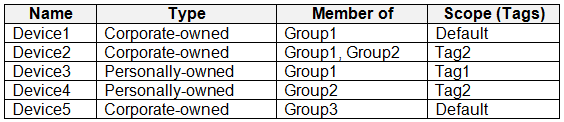
You have a Microsoft 365 E5 subscription that contains devices enrolled in Microsoft Intune as shown in the following table.
The subscription contains the users shown in the following table.
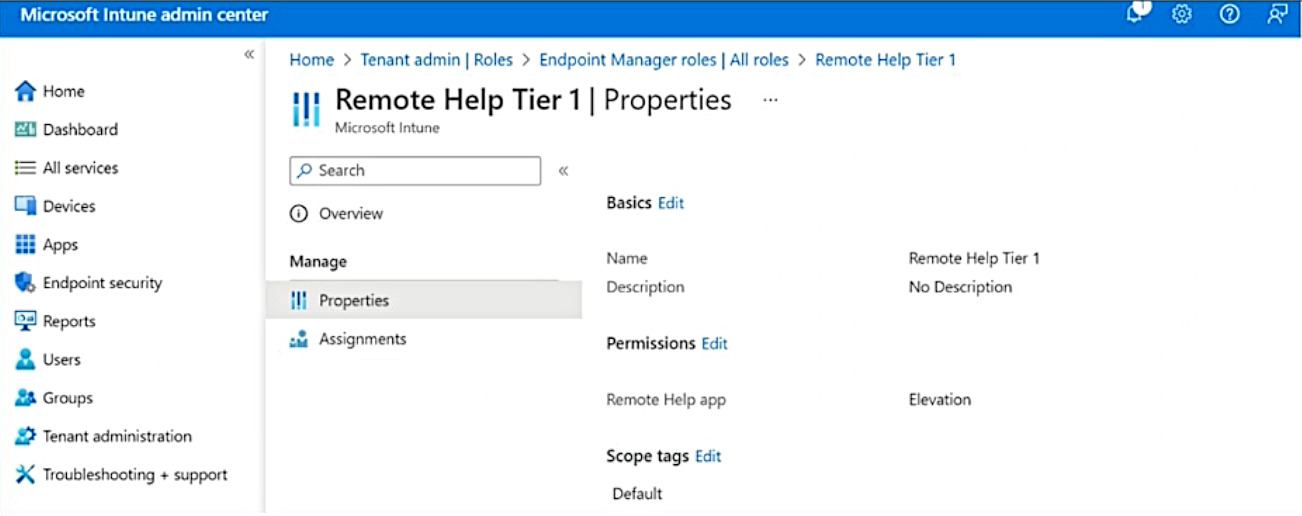
The Remote Help Tier1 role is configured as shown in the following exhibit.
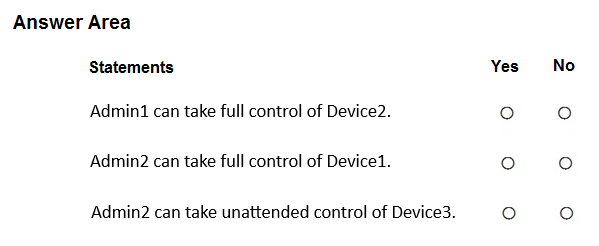
For each of the following statements, select Yes if the statement is true. Otherwise, select No.
NOTE: Each correct selection is worth one point.
Show Answer
Correct Answer: No
Yes
No
Explanation: iOS devices aren't supported for Remote Help control. The custom Intune role with Elevation implicitly includes View screen and Take full control, so Admin2 can fully control the Windows device. Unattended control requires the separate Unattended control permission, which isn't granted by Elevation alone.
Question 41
Case study -
Overview -
ADatum Corporation is a consulting company that has a main office in Montreal and branch offices in Seattle and New York.
ADatum has a Microsoft 365 E5 subscription.
Environment -
Network Environment -
The network contains an on-premises Active Directory domain named adatum.com. The domain contains the servers shown in the following table.
ADatum has a hybrid Azure AD tenant named adatum.com.
Users and Groups -
The adatum.com tenant contains the users shown in the following table.
All users are assigned a Microsoft Office 365 license and an Enterprise Mobility + Security E3 license.
Enterprise State Roaming is enabled for Group1 and GroupA.
Group1 and Group2 have a Membership type of Assigned.
Devices -
ADatum has the Windows 10 devices shown in the following table.
The Windows 10 devices are joined to Azure AD and enrolled in Microsoft Intune.
The Windows 10 devices are configured as shown in the following table.
All the Azure AD joined devices have an executable file named C:\AppA.exe and a folder named D:\Folder1.
Microsoft Intune Configuration -
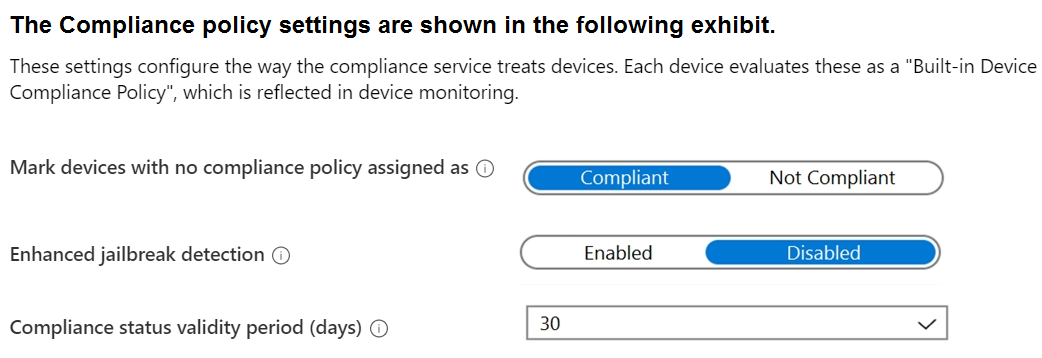
Microsoft Intune has the compliance policies shown in the following table.
The Automatic Enrollment settings have the following configurations:
MDM user scope: GroupA -
MAM user scope: GroupB -
You have an Endpoint protection configuration profile that has the following Controlled folder access settings:
Name: Protection1 -
Folder protection: Enable -
List of apps that have access to protected folders: C:\*\AppA.exe
List of additional folders that need to be protected: D:\Folder1
Assignments:
Included groups: Group2, GroupB -
Windows Autopilot Configuration -
ADatum has a Windows Autopilot deployment profile configured as shown in the following exhibit.
Currently, there are no devices deployed by using Windows Autopilot.
The Intune connector for Active Directory is installed on Server1.
Requirements -
Planned Changes -
ADatum plans to implement the following changes:
Purchase a new Windows 10 device named Device6 and enroll the device in Intune
New computers will be deployed by using Windows Autopilot and will be hybrid Azure AD joined.
Deployed a network boundary configuration profile that will have the following settings:
Name: Boundary1 -
Network boundary: 192.168.1.0/24
Scope tags: Tag1 -
Assignments:
Included groups: Group1, Group2 -
Deploy two VPN configuration profiles named Connection1 and Connection2 that will have the following settings:
Name: Connection1 -
Connection name: VPN1 -
Connection type: L2TP -
Assignments:
Included groups: Group1, Group2, GroupA
Excluded groups: --
Name: Connection2 -
Connection name: VPN2 -
Connection type: IKEv2 -
Assignments:
Included groups: GroupA -
Excluded groups: GroupB -
Technical Requirements -
ADatum must meet the following technical requirements:
Users in GroupA must be able to deploy new computers.
Administrative effort must be minimized.
Which devices are registered by using the Windows Autopilot deployment service?
A. Device1 only
B. Device3 only
C. Device1 and Device3 only
D. Device1, Device2, and Device3
Show Answer
Correct Answer: A
Explanation: The profile’s “Convert all targeted devices to Autopilot” setting registers eligible corporate-owned Intune devices targeted by the profile. Device1 is corporate-owned, belongs to Group1, and is not in the excluded Group2. Device2 is excluded because it belongs to Group2, and Device3 is personally owned, so it is not converted. Therefore, only Device1 is registered.
Question 42
HOTSPOT
-
You have a Microsoft 365 E5 subscription.
The subscription contains users that have devices onboarded to Microsoft Defender for Endpoint. Defender for Endpoint is configured to forward signals to Microsoft Defender for Cloud Apps.
Cloud Discovery identifies a risky web app named App1.
You need to block users from connecting to App1 from Microsoft Edge. Users must be able to bypass the restriction.
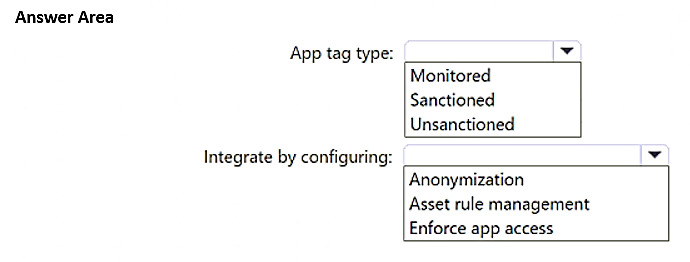
Which type of app tag should you use, and what should you configure to integrate Defender for Endpoint with Defender for Cloud Apps? To answer, select the appropriate options in the answer area.
NOTE: Each correct selection is worth one point.
Show Answer
Correct Answer: App tag type: Monitored
Integrate by configuring: Enforce app access
Explanation: To allow users to be warned and optionally bypass access in Microsoft Edge through the Defender for Endpoint and Defender for Cloud Apps integration, use a Monitored app tag with Enforce app access. Unsanctioned is intended for hard blocking without user override.
Question 42
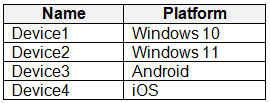
You have devices enrolled in Microsoft Intune as shown in the following table.
On which devices can you apply app configuration policies?
A. Device2 only
B. Device1 and Device2 only
C. Device3 and Device4 only
D. Device2, Device3, and Device4 only
E. Device1, Device2, Device3, and Device4
Show Answer
Correct Answer: C
Explanation: Intune app configuration policies target Android and iOS/iPadOS apps. They can therefore be applied to Device3 and Device4, but not the Windows devices.
Question 43
You use Microsoft Defender for Office 365.
You plan to automate an attack simulation campaign.
Any users that fail the simulation must take additional training based on the simulation results.
What is the maximum number of days the training will be available to the users after the simulation?
A. 7
B. 15
C. 30
D. 45
Show Answer
Correct Answer: C
Explanation: In Microsoft Defender for Office 365 Attack Simulation Training, when assigning training to users who fail a simulation, the configurable training due date options are 7, 15, or 30 days after the simulation ends. Therefore, the maximum time the training is available is 30 days.
Question 43
Case study -
Overview -
ADatum Corporation is a consulting company that has a main office in Montreal and branch offices in Seattle and New York.
ADatum has a Microsoft 365 E5 subscription.
Environment -
Network Environment -
The network contains an on-premises Active Directory domain named adatum.com. The domain contains the servers shown in the following table.
ADatum has a hybrid Azure AD tenant named adatum.com.
Users and Groups -
The adatum.com tenant contains the users shown in the following table.
All users are assigned a Microsoft Office 365 license and an Enterprise Mobility + Security E3 license.
Enterprise State Roaming is enabled for Group1 and GroupA.
Group1 and Group2 have a Membership type of Assigned.
Devices -
ADatum has the Windows 10 devices shown in the following table.
The Windows 10 devices are joined to Azure AD and enrolled in Microsoft Intune.
The Windows 10 devices are configured as shown in the following table.
All the Azure AD joined devices have an executable file named C:\AppA.exe and a folder named D:\Folder1.
Microsoft Intune Configuration -
Microsoft Intune has the compliance policies shown in the following table.
The Automatic Enrollment settings have the following configurations:
MDM user scope: GroupA -
MAM user scope: GroupB -
You have an Endpoint protection configuration profile that has the following Controlled folder access settings:
Name: Protection1 -
Folder protection: Enable -
List of apps that have access to protected folders: C:\*\AppA.exe
List of additional folders that need to be protected: D:\Folder1
Assignments:
Included groups: Group2, GroupB -
Windows Autopilot Configuration -
ADatum has a Windows Autopilot deployment profile configured as shown in the following exhibit.
Currently, there are no devices deployed by using Windows Autopilot.
The Intune connector for Active Directory is installed on Server1.
Requirements -
Planned Changes -
ADatum plans to implement the following changes:
Purchase a new Windows 10 device named Device6 and enroll the device in Intune
New computers will be deployed by using Windows Autopilot and will be hybrid Azure AD joined.
Deployed a network boundary configuration profile that will have the following settings:
Name: Boundary1 -
Network boundary: 192.168.1.0/24
Scope tags: Tag1 -
Assignments:
Included groups: Group1, Group2 -
Deploy two VPN configuration profiles named Connection1 and Connection2 that will have the following settings:
Name: Connection1 -
Connection name: VPN1 -
Connection type: L2TP -
Assignments:
Included groups: Group1, Group2, GroupA
Excluded groups: --
Name: Connection2 -
Connection name: VPN2 -
Connection type: IKEv2 -
Assignments:
Included groups: GroupA -
Excluded groups: GroupB -
Technical Requirements -
ADatum must meet the following technical requirements:
Users in GroupA must be able to deploy new computers.
Administrative effort must be minimized.
You implement Boundary1 based on the planned changes.
Which devices have a network boundary of 192.168.1.0/24 applied?
A. Device2 only
B. Device3 only
C. Device1, Device2, and Device5 only
D. Device1, Device2, Device3, and Device4 only
Show Answer
Correct Answer: D
Explanation: Boundary1 is assigned to Group1 and Group2. Device1 and Device3 are in Group1, Device2 is in both groups, and Device4 is in Group2. Device5 is only in Group3, so it is not targeted. Scope tags control administrative visibility and do not determine policy assignment.
Question 44
You have a Microsoft 365 E5 subscription.
You have a Microsoft Intune enrollment profile for Android Enterprise devices that has the following settings:
• Name: Profile1
• Token type: Corporate-owned, fully managed
You need to enroll a new Android device in Intune by using Profile1.
What should you use to enroll the device?
A. a QR code
B. the Company Portal app
C. the Microsoft Authenticator app
D. the Intune app
Show Answer
Correct Answer: A
Explanation: For Android Enterprise corporate-owned, fully managed devices, enrollment is performed during the out-of-box experience using the enrollment profile's QR code. The Company Portal, Microsoft Authenticator, and Intune app are not the primary enrollment mechanism for this enrollment profile type.
Question 44
Your network contains an on-premises Active Directory domain and an Azure AD tenant.
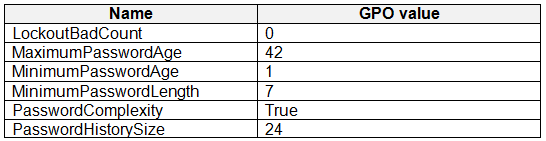
The Default Domain Policy Group Policy Object (GPO) contains the settings shown in the following table.
You need to migrate the existing Default Domain Policy GPO settings to a device configuration profile.
Which device configuration profile type template should you use?
A. Administrative Templates
B. Endpoint protection
C. Device restrictions
D. Custom
Show Answer
Correct Answer: C
Explanation: The listed GPO settings are password and sign-in restrictions. The Device restrictions template is the Intune profile type for configuring Windows device password requirements; Administrative Templates are intended for ADMX-backed policy settings.
Question 46
You have a Microsoft 365 E5 subscription and use Microsoft Intune.
You need to use a Sync bulk device action on all corporate-owned Windows devices.
What is the maximum number of devices you can include the action?
A. 25
B. 50
C. 100
D. 500
E. 1000
Show Answer
Correct Answer: C
Explanation: The Sync bulk device action in Microsoft Intune supports selecting up to 100 devices. While some newer documentation has discussed higher limits for certain bulk actions, the Sync action is limited to 100 devices in the Intune admin experience and Microsoft documentation indicates that most bulk actions support up to 100 devices.
$19
Get all 371 questions with detailed answers and explanations
Instant download HTML + PDF delivered the moment payment clears.
Secure Stripe checkout we never see or store your card details.
7-day refund if files are defective see our refund policy.