HOTSPOT -
You have a Microsoft 365 E5 subscription that uses Microsoft Intune.
You have the Windows 11 devices shown in the following table.
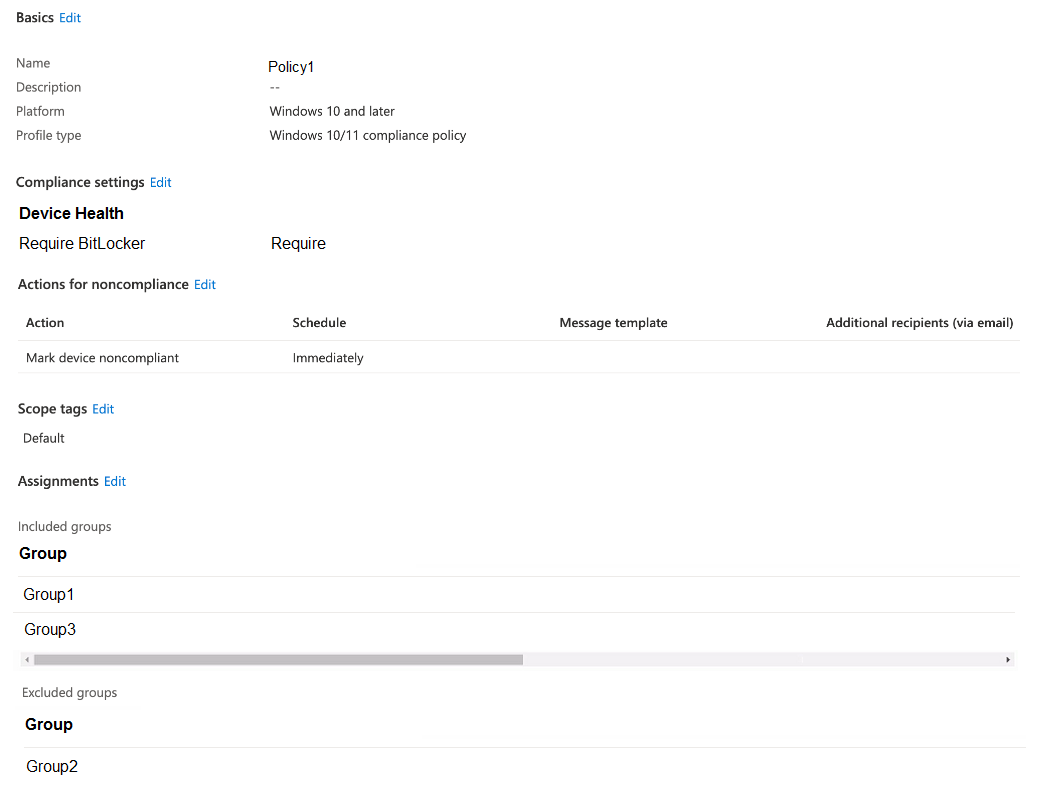
You deploy the device compliance policy shown in the exhibit. (Click the Exhibit tab.)
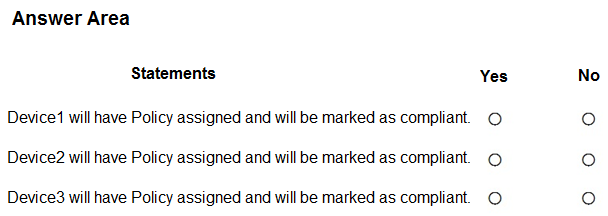
For each of the following statements, select Yes if the statement is true. Otherwise, select No.
NOTE: Each correct selection is worth one point.
Show Answer
Correct Answer: Device1: Yes
Device2: No
Device3: No
Explanation: Device1 receives the policy and has BitLocker enabled. Device2 receives the policy but fails its BitLocker requirement. Device3 is excluded through Group2, so the policy is not assigned.
Question 8
You have a Microsoft 365 subscription and use Microsoft Intune Suite.
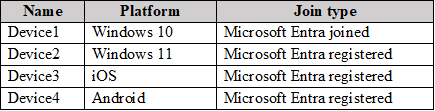
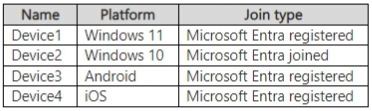
The subscription contains devices enrolled in Intune as shown in the following table.
Which devices support Device query?
A. Device1 only
B. Device2 only
C. Device1 and Device2 only
D. Device1, Device2, Device3, and Device4
Show Answer
Correct Answer: A
Explanation: Device query is supported on Intune-managed Windows 10 or later devices that are Microsoft Entra joined (or hybrid joined). Device1 meets these requirements. Device2 is Microsoft Entra registered, while Device3 and Device4 run unsupported platforms.
Question 8
You use Microsoft Intune and Intune Data Warehouse.
You need to create a device inventory report that includes the data stored in the data warehouse.
What should you use to create the report?
A. the Company Portal app
B. Endpoint analytics
C. the Azure portal app
D. Microsoft Power BI
Show Answer
Correct Answer: D
Explanation: Use Microsoft Power BI to connect to Intune Data Warehouse and create a device inventory report from its data.
Question 9
You have a Microsoft 365 subscription that contains a user named User1 and 500 Windows devices enrolled in Microsoft Intune.
You configure an attack surface reduction (ASR) rule and enable the rule in Warn mode.
User1 downloads a file named file1.exe. When User1 attempts to run file1.exe he receives a prompt that the content has been blocked. The user unblocks the content.
How much time will pass until the user is prompted next to unblock the content?
A. 10 minutes
B. one hour
C. 24 hours
D. one week
Show Answer
Correct Answer: C
Explanation: The correct answer is C. When an Attack Surface Reduction (ASR) rule is configured in Warn mode, users can choose to bypass the block. That bypass is remembered for 24 hours for the specific file, after which the user will be prompted again if the file triggers the same ASR rule.
Question 9
You have a Microsoft Intune subscription.
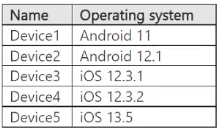
You have devices enrolled in Intune as shown in the following table.
An app named App1 is installed on each device.
What is the minimum number of app configuration policies required to manage App1?
A. 1
B. 2
C. 3
D. 4
E. 5
Show Answer
Correct Answer: B
Explanation: App configuration policies are platform-specific. One policy can target the Android devices, and another can target the iOS devices; OS versions do not require separate policies. Therefore, the minimum is 2.
Question 9
Your company uses Microsoft Intune to manage devices.
You need to ensure that only Android devices that use Android work profiles can enroll in Intune.
Which two configurations should you perform in the device enrollment restrictions? Each correct answer presents part of the solution.
NOTE: Each correct selection is worth one point.
A. From Platform Settings, set Android device administrator Personally Owned to Block.
B. From Platform Settings, set Android Enterprise (work profile) to Allow.
C. From Platform Settings, set Android device administrator Personally Owned to Allow.
D. From Platform Settings, set Android device administrator to Block.
Show Answer
Correct Answer: B, D
Explanation: Allow Android Enterprise (work profile) enrollment and block the Android device administrator platform. Blocking the entire device administrator platform ensures Android devices cannot enroll through that legacy method, leaving work-profile enrollment as the permitted Android option.
Question 10
You have a Microsoft 365 subscription that uses Microsoft Intune.
You need to ensure that users are prompted for multifactor authentication (MFA) when they enroll a personal device in Intune. The solution must minimize administrative effort.
What should you create?
A. an attack surface reduction (ASR) policy
B. a device configuration profile
C. an authentication method policy
D. a Conditional Access policy
Show Answer
Correct Answer: D
Explanation: A Conditional Access policy can require multifactor authentication during Intune enrollment for personal devices by targeting the Microsoft Intune Enrollment cloud app. This is the standard, centralized way to enforce MFA at enrollment with minimal administrative effort. ASR policies and device configuration profiles do not control enrollment authentication, and an authentication method policy configures available MFA methods rather than requiring MFA during enrollment.
Question 10
You have a Microsoft 365 E5 subscription that contains the devices shown in the following table.
All the devices are enrolled in Microsoft Intune and have Microsoft 365 Apps for enterprise installed.
On which devices can you use the Cloud Policy service for Microsoft 365 to manage Microsoft 365 Apps for enterprise?
A. Device2 only
B. Device1 and Device2 only
C. Device1, Device2, and Device3 only
D. Device1, Device2, and Device4 only
E. Device1, Device2, Device3, and Device4
Show Answer
Correct Answer: E
Explanation: Cloud Policy for Microsoft 365 Apps can apply when a user signs in to the apps; it does not require a particular Entra join type. It supports Windows, Android, and iOS, so it can be used on all four listed devices. Available policy settings may vary by platform.
Question 11
HOTSPOT
-
You have a Microsoft 365 E5 subscription that contains a group named Group1 and 500 mobile devices that run Android or iOS.
You need to create app protection policies and Conditional Access policies for the subscription. The solution must meet the following requirements:
• Encrypt corporate data stored on the mobile devices.
• Automatically remove corporate data stored on a mobile device if the device is offline for 45 days.
• Ensure that only users assigned app protection policies can use mobile devices to access the subscription.
• On the mobile devices used only by Group1, automatically remove corporate data stored on the devices if the devices are offline for 30 days.
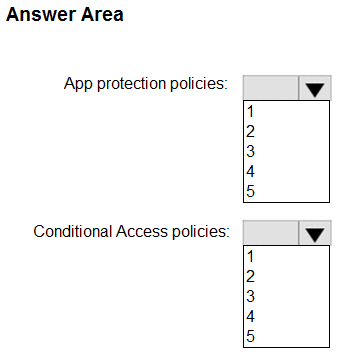
What is the minimum number of policies you should create? To answer, select the appropriate options in the answer area.
NOTE: Each correct selection is worth one point.
Explanation: App protection policies are platform-specific (Android and iOS/iPadOS). Because the offline wipe period differs (45 days for most users, 30 days for Group1), you need two policies per platform: 2 × 2 = 4. A single Conditional Access policy can require an approved app/app protection policy for mobile access.
Question 11
Your on-premises network contains an Active Directory Domain Services (AD DS) domain named contoso.com.
The domain contains a domain controller named dc1.contoso.com.
You have a Microsoft 365 E5 subscription that uses Microsoft Intune Suite.
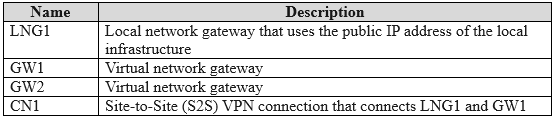
You have an Azure subscription that contains the resources shown in the following table.
The subscription contains the virtual networks shown in the following table.
You plan to deploy Windows 365 Enterprise Cloud PC.
You need to create an Azure network connection (ANC) that will use Microsoft Entra hybrid join.
Which virtual network can you use for the ANC?
A. VNet1 only
B. VNet2 only
C. VNet3 only
D. VNet1 and VNet2
E. VNet1 and VNet3
Show Answer
Correct Answer: A
Explanation: VNet1 is configured to use dc1.contoso.com for DNS and has GW1, which is connected to the on-premises network through the site-to-site VPN. This provides the DNS resolution and domain-controller connectivity required for Microsoft Entra hybrid join. VNet2 lacks a gateway, and VNet3 has no VPN connection to the on-premises network.
$19
Get all 371 questions with detailed answers and explanations
Instant download HTML + PDF delivered the moment payment clears.
Secure Stripe checkout we never see or store your card details.
7-day refund if files are defective see our refund policy.